
Your slides aren’t your script
Good slides don’t say everything. They can’t. A slide crowded with every sentence you plan to speak isn’t a visual aid, it’s a document projected on a wall, and your audience will read it instead of listening to you.
PowerPoint speaker notes give you a private place to keep talking points or a complete presentation script with each slide.
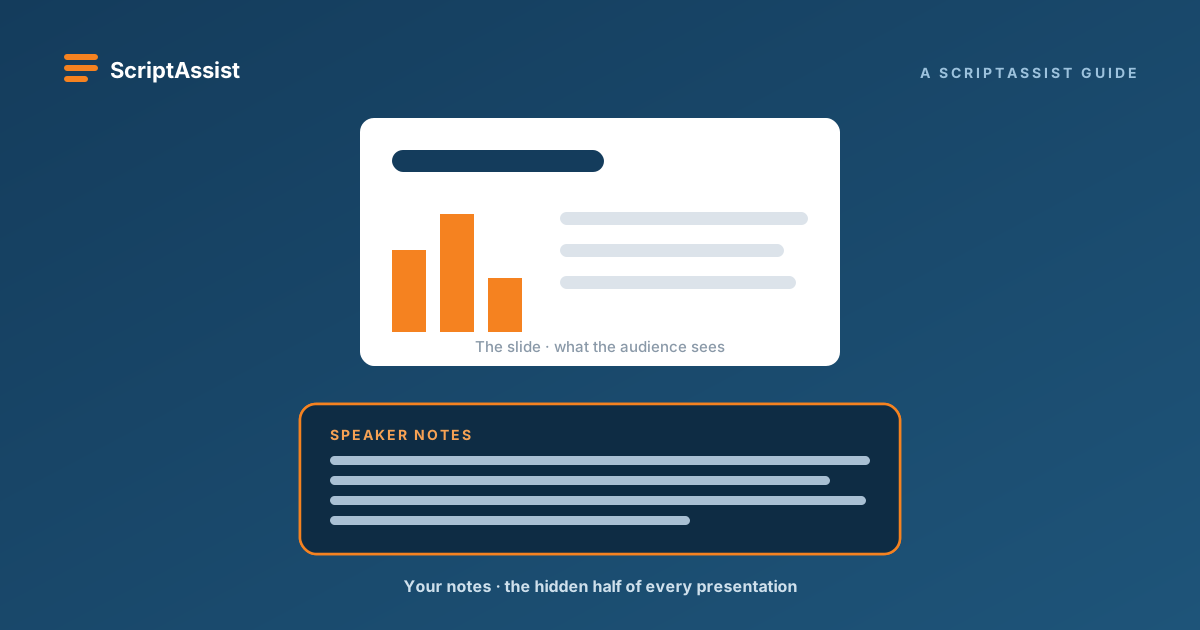
Slides are for the audience. Speaker notes are for you. The slide carries the visual: the chart, the headline, the short bullets that anchor the message. The notes carry everything else: the narrative, the transitions, the supporting facts, the reminder to pause.
That makes the notes area under each slide one of PowerPoint’s most useful presentation tools. Keep your script there and it travels with the deck, stays in slide order, and stays aligned with your slides instead of creating a separate script document to maintain.
Your slides show the story. Your notes help you tell it.
This guide covers the whole life of your speaker notes: writing them, reviewing them with other people, timing them, and using them when you present, in the room or on camera.
Keep your script, slides, and timing in one place
ScriptAssist is a PowerPoint add-in for Windows that exports your speaker notes to Word for review, helps you tighten them with AI, times your talk, and puts your script on a teleprompter when you present.
What are PowerPoint speaker notes?
Every PowerPoint slide has its own notes area. It sits below the slide in Normal view, and whatever you type there is saved inside the presentation file itself: the notes are part of the .pptx and move with their slides when you reorder, copy, or share the deck.
Notes normally don’t appear on the projected or shared slide. (There are ways to accidentally show them, covered later, but by default they stay private.) And they can hold as much or as little as you need: a few one-word reminders, a paragraph of talking points, or a complete word-for-word script.
How to add speaker notes in PowerPoint
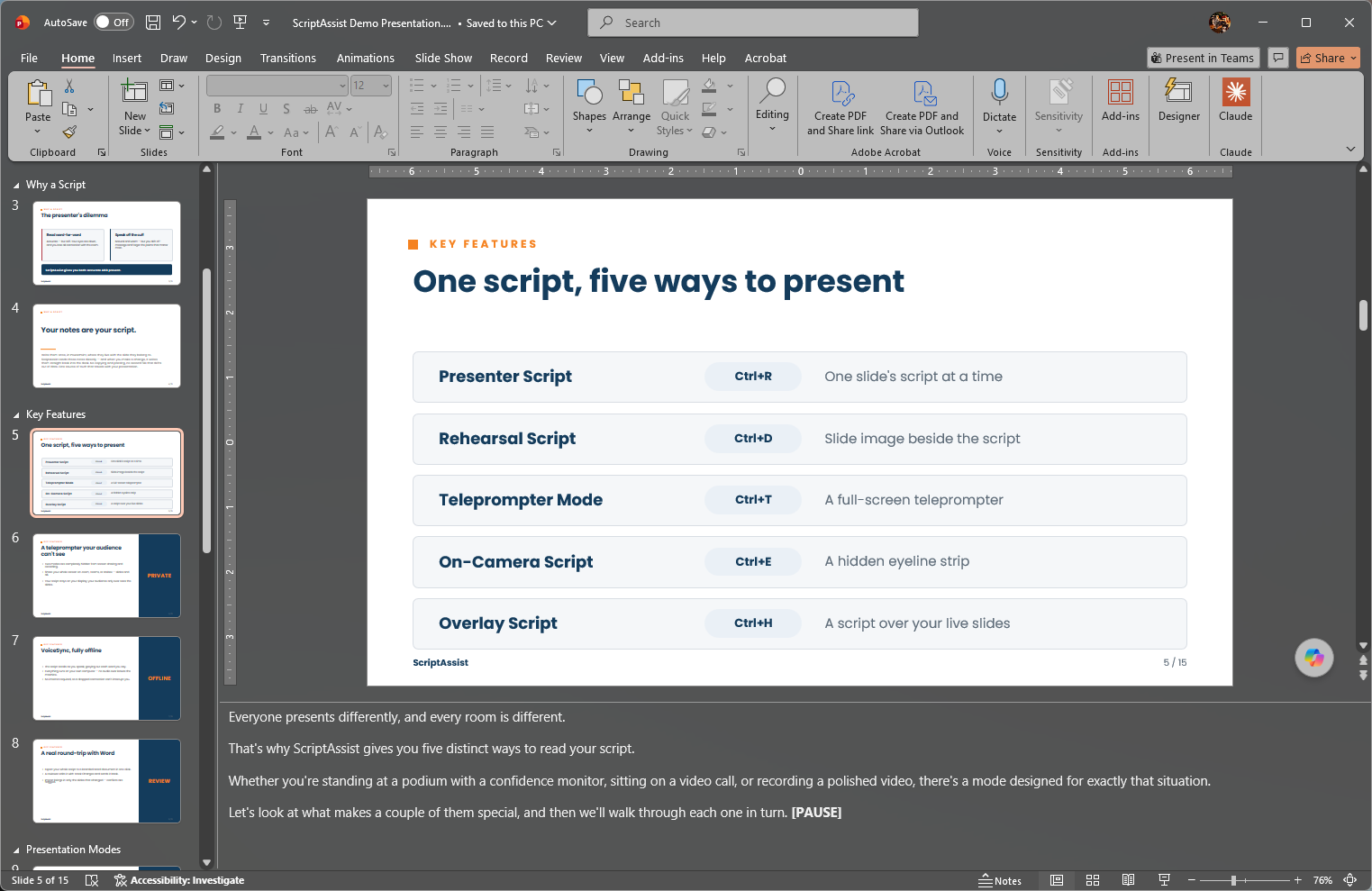
Adding notes takes seconds:
- Open the Notes pane. In Normal view, click Notes on the status bar and the pane appears below the slide.
- Type or paste your notes. Drag the pane’s top edge upward for longer scripts.
- Use Notes Page view for long scripts. View, then Notes Page gives each slide a full page of notes, easier for writing and proofreading.
- Save. The notes are stored in the presentation file, no extra steps.
That’s the mechanics. The more important question is what should go in there.
Speaker notes vs. a presentation script
Presenters use the notes area in three broadly different ways, and all three are legitimate:
| Approach | Best for | Typical content |
|---|---|---|
| Cue notes | Familiar, informal presentations | Reminders and prompts |
| Talking points | Conversational presentations | Key ideas and transitions |
| Full script | High-stakes or precision-sensitive presentations | Planned spoken language |
There’s no one right level of scripting. It depends on the stakes, the complexity of the material, your experience with the topic, your time limit, and whether other presenters need to sound consistent. A five-minute team update might need three cue lines per slide. A regulatory briefing or an earnings call probably needs every word decided in advance.
The craft of writing a full script that sounds natural is its own topic: see how to write a presentation script that doesn’t sound like reading.
How to write speaker notes that sound natural
Whichever level you choose, one rule governs all of it: write for the ear, not the page. Prose that reads well silently often sounds stiff when spoken. Spoken language is shorter, plainer, and more direct.
- Short sentences. One idea each. If you run out of breath reading a sentence aloud, cut it in two.
- Use contractions. “We’re,” “it’s,” “you’ll.” That’s how people talk.
- Write transitions. A line like “so what did we do about it?” carries you into the next slide instead of stopping dead at every slide boundary.
- Mark your pauses. A [pause] after a key number is a delivery instruction to your future self.
- Use your own words. If you’d never say “leverage synergies” out loud, don’t write it in your notes.
A common mistake is converting bullets into slightly longer bullets to accommodate scripting. Bullets should be short and punchy, with speaking notes that add the context. Here’s the difference:
The slide says:
- Revenue up 18% year over year
- Operating margin improved to 24%
- Customer churn down in all segments
The notes say:
“This was the strongest quarter we’ve had in two years. Revenue grew eighteen percent over last year, and we did it while improving our operating margin to twenty-four percent. And here’s the part I’m most pleased about: churn came down in every single customer segment. Growth is one thing. Growth while keeping the customers we already have is another.”
Same facts. Completely different experience for the listener. The slide states; the notes speak.
If a blank notes box is what’s stopping you, AI can produce a first draft to edit into your own voice; more on that below.
Reviewing PowerPoint speaker notes with other people
In many organizations, a presentation script is reviewed by more than one person. The presenter drafts, but a manager wants a pass at the messaging, legal needs to check a claim, a colleague knows the data better.
Script review is a team sport, and PowerPoint is a poor place to play it. Reviewers don’t want to edit long-form text in the notes pane, slide by slide. What they know and trust is Microsoft Word.
So teams do the “easiest” thing: copy the notes into a Word document and send it around. Now there are two scripts, the one in the deck and the one in the document. Someone spends an evening pasting revised paragraphs back into the right slides, and a week later nobody is quite sure which version is the real one.
The moment your script exists in two places, one of them is wrong. You just don't know which one yet.
Review in Word. Present from PowerPoint.
This is the problem ScriptAssist removes. Instead of keeping a separate Word script and pasting updates back into PowerPoint by hand, it keeps one true script and handles the round trip for you:
- PowerPoint: the script lives in the speaker notes.
- Word: ScriptAssist exports the notes to a formatted Word document; reviewers edit with Track Changes and the tools they already know.
- PowerPoint: ScriptAssist identifies what changed, and you bring the approved wording back to the correct slides.
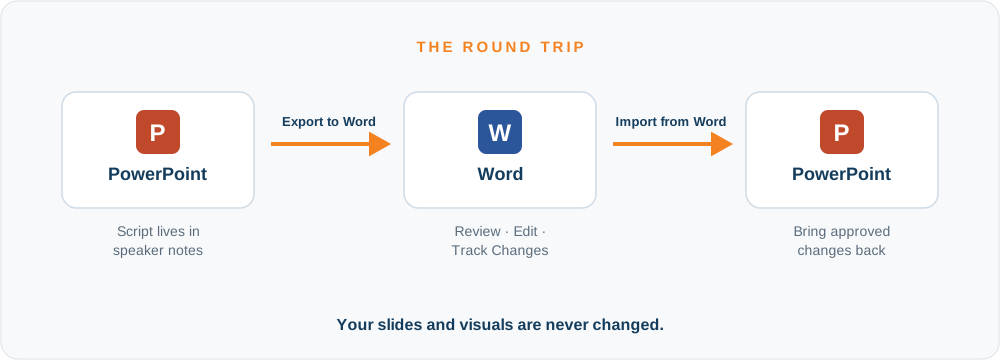
No manual copy and paste. No separate master script to reconcile. Changed slides are identified for you, conflicts are flagged before anything gets overwritten, and PowerPoint remains the source of truth the whole time.
The full mechanics are in our detailed guide to reviewing your PowerPoint script in Word, with a feature overview at the Word review workflow page.
Review in Word without rebuilding tables
ScriptAssist exports slides and notes to Word with thumbnails, so reviewers can use Track Changes, and then brings the approved script back into PowerPoint.
How long should PowerPoint speaker notes be?
Not “as long as they need to be.” Work backward from your speaking time.
140 words per minute is a common general estimate. For presentation planning, a more conservative 120 words per minute can leave room for pauses, slide changes, and emphasis, and dense technical or scientific material can run slower still. Here is how those rates compare:
| Speaking time | 140 WPM | 120 WPM |
|---|---|---|
| 1 minute | about 140 words | about 120 words |
| 5 minutes | about 700 words | about 600 words |
| 10 minutes | about 1,400 words | about 1,200 words |
| 20 minutes | about 2,800 words | about 2,400 words |
Treat these as ceilings, not targets. Pauses, slide changes, demos, and audience questions all eat minutes that words can’t have, so a 20-minute slot with Q&A and a demo is really a much shorter script.
Estimate your own script in seconds with our free Script Time Calculator: paste your script, choose a speaking pace, and see how many words to add or cut to hit your target.
Pace is personal, however, and the surest way to know yours is to measure it. ScriptAssist’s Presentation Timing estimates speaking time per slide and for the whole deck, and calibrates to your own measured pace from a rehearsal.
Write to your time, not to a word count.
Using AI to draft or improve speaker notes
AI can help with two pain points when scripting: starting from scratch, and keeping a draft from sounding like bullets.
- No script yet? ScriptAssist’s Draft with AI action drafts a spoken-style script from what the slide already contains, its title and on-slide text. You edit the draft into your own voice.
- Script not working? On a slide that already has notes, Improve with AI suggests a more natural rewrite: shorter sentences, spoken phrasing, better pacing.
AI drafts. You decide. Every suggestion appears beside your current notes, and nothing changes until you accept it. You remain responsible for accuracy, tone, and the final language, because you’re the one who has to say it.
The full walkthrough is in how to write a PowerPoint script with AI, with the feature summary at AI Script Assistant.
Managing speaker notes as part of the presentation workflow
Pull the threads together and speaker notes stop being a text box and become a workflow:
Write → Review → Refine → Time → Rehearse → Present
- Write the script in the speaker notes, so PowerPoint stays the single source of truth.
- Review it collaboratively through Word, without competing master versions.
- Refine the language for speaking, with AI as an optional accelerator.
- Time it against your slot, so you cut on paper instead of on stage.
- Rehearse until the script is support, not a crutch.
- Present with the notes where you can actually use them.

Presenting with your script
Writing and reviewing a script is one job; reading it while you present is another. The rest of the guide is about using your script while presenting.
Can your audience see your PowerPoint speaker notes?
Normally, no. But it depends on how you present and what you share.
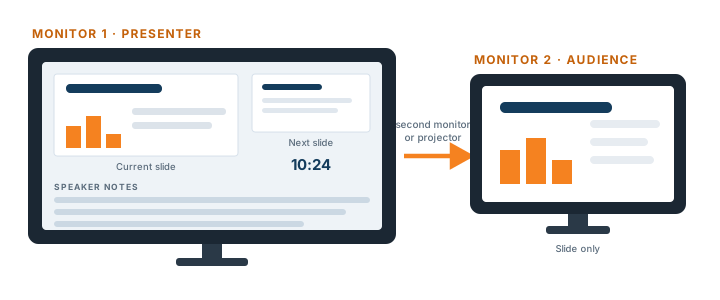
On a projector or second display, PowerPoint’s Presenter View sends the slide to the audience screen and keeps your notes on your own. As long as the displays are assigned correctly, your notes stay private.
On Zoom, Teams, or any screen share, the risk is real: share the wrong display, or your whole desktop instead of the slide-show window, and your notes are suddenly on everyone’s screen.
The rule that prevents it: test exactly what your audience will see before you present. Join the meeting from a second device and look at your own share. Our virtual presentation best practices guide has a full pre-flight checklist, and for a purpose-built private script, see using PowerPoint as a teleprompter.
Using speaker notes with PowerPoint Presenter View
Presenter View is PowerPoint’s solution for using speaker notes while presenting. On your private screen you get the current slide, a preview of the next slide, your speaker notes, a timer, and navigation controls, while the audience display shows only the slide. In a conference room or on stage with a physical second display, it does its job well.
The limitation shows up when you present virtually. Presenter View fills a monitor, and your notes land wherever that monitor is: below your eyeline, or off on a side display. Your webcam is somewhere else entirely. So you can read your notes, or you can look toward your audience, but doing both naturally is very hard. Every glance at the script is a glance away from the camera, and on video, your audience sees every one of them.
We’ve written a full comparison in PowerPoint Presenter View vs. ScriptAssist.
How to read PowerPoint notes without losing eye contact
Where your notes sit determines where your eyes go:
- Notes below the slide pull your eyes visibly down. On camera it reads as looking at your desk.
- Notes on a second monitor pull your eyes sideways. It reads as talking to someone off-screen.
- Notes directly under the webcam keep your gaze within a few degrees of the lens. To your audience, that reads as eye contact.
That third position is what ScriptAssist’s On-Camera Script is built around. It puts your script in a wide, shallow, slightly transparent window centered immediately beneath your webcam. Your slide stays up, your script sits at the lens, and reading it keeps you looking at your audience instead of away from them.
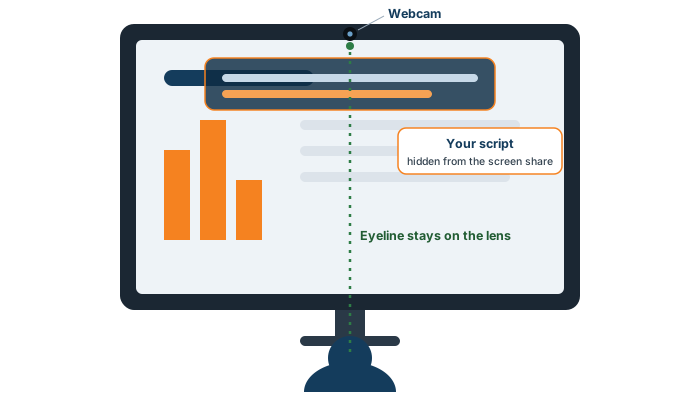
On camera, eye contact isn't a talent. It's a question of where you put your script.
For the delivery technique side, see how to maintain eye contact while presenting on camera; feature details at On-Camera Script.
Using speaker notes while sharing your screen
The other half of the virtual problem: sharing your slides without sharing your script. The goal is simple to state:
- Your audience sees: the presentation. Nothing else.
- You see: the presentation, plus your private script.
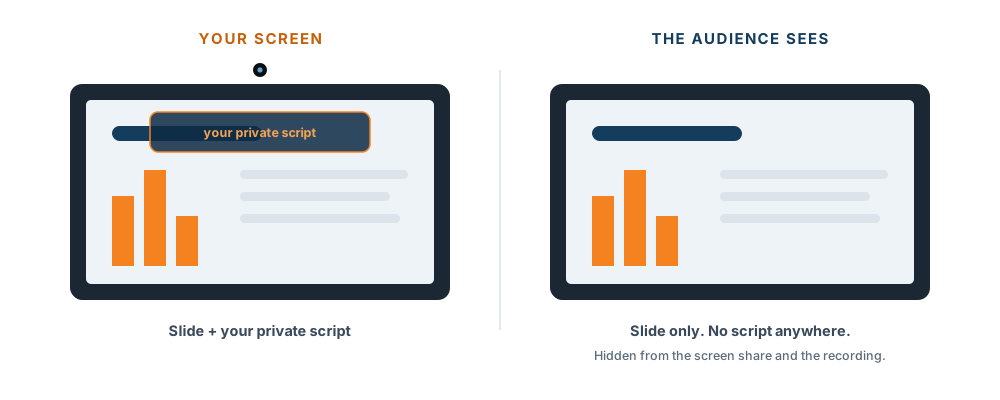
Presenter View achieves this with a second display. ScriptAssist achieves it on the same screen you’re sharing: the On-Camera Script window is hidden from screen sharing on Windows, so it never appears in the shared screen or the recording, even though it’s right there in front of you. No display juggling, no “can everyone see my notes?” moment. Your existing deck, your existing speaker notes, shared exactly as they are.
Should you read your presentation script word for word?
Sometimes. But the objective is never to sound like you’re reading.
Think of delivery as a continuum: memorized → talking points → light script → full script. Where you sit on it should match the moment. High-stakes, precision-sensitive presentations, an earnings summary, a regulatory presentation, a message legal signed off on word by word, justify a full script. A conversational team update wants talking points and room to breathe.
The real skill is preparation without sounding prepared, and that comes from rehearsal, not from abandoning the script. Read it aloud enough times and the script stops being something you decode and becomes something you recognize: your eyes touch a phrase and the sentence is already in your mouth. By then you’re not reading it, you’re being reminded of it. (ScriptAssist’s VoiceSync helps here: it listens on-device and scrolls the script as you speak, hands-free. See VoiceSync.)
Rehearse until the script stops being something you read and becomes something you recognize.
PowerPoint speaker-note best practices
The whole guide in eight lines:
- Keep your script with the slide it supports. Speaker notes, not a separate document.
- Write for speaking, not reading. Short sentences, contractions, your own words.
- Don’t narrate the slide. Add to what’s visible instead of repeating it.
- Write transitions. Bridge lines between slides are where flow lives.
- Estimate speaking time before rehearsing. Plan with a conservative estimate (around 120 words per minute leaves room for pauses), then calibrate to your real pace.
- Review collaboratively without forking the script. Round-trip through Word; PowerPoint stays the source of truth.
- Test exactly what your audience will see. Before every virtual presentation.
- Put your notes near the camera when presenting virtually. Gaze geometry beats willpower.
Frequently asked questions
Can the audience see speaker notes in PowerPoint? Normally, no. Notes don’t appear on the projected or shared slide. But sharing the wrong display or window in Zoom or Teams can expose them, so test what your audience will see before you present.
How do I see my notes while presenting? With a second display, use PowerPoint’s Presenter View. Presenting virtually, ScriptAssist can place your script directly under your webcam instead.
Can I see PowerPoint notes while sharing my screen? Yes. Presenter View works with a second display. ScriptAssist’s On-Camera Script works on the screen you’re sharing: it’s hidden from screen sharing on Windows, so only you see it.
Can I use PowerPoint speaker notes as a script? Absolutely. Notes hold anything from cue words to a complete word-for-word script, which then travels with the deck. See how to write a presentation script.
Can I export PowerPoint speaker notes to Word? Yes. ScriptAssist exports every slide’s notes to a Word document for review with Track Changes, then identifies the changes and lets you bring the approved wording back into the correct slides. Details in the Word round-trip guide.
How do I read PowerPoint notes without looking away from the camera? Put the script as close to the lens as possible. ScriptAssist’s On-Camera Script centers a slightly transparent script window under your webcam. More in how to maintain eye contact.
How long should my speaker notes be? Work backward from your time slot. 140 words per minute is a common general estimate; for planning, a more conservative 120 words per minute leaves room for pauses and emphasis. At 120 wpm, a 10-minute talk is roughly 1,200 words. ScriptAssist’s Presentation Timing can calibrate estimates to your own measured pace.
Can AI write PowerPoint speaker notes for me? AI can draft them. ScriptAssist’s Improve with AI drafts a spoken-style script from your slide content, or rewrites existing notes, and nothing changes until you accept it. Full guide: writing a PowerPoint script with AI.
Keep the script where it belongs
PowerPoint already has a logical home for your presentation script: the speaker notes, attached to the slides they support. What native PowerPoint doesn’t cover is everything that happens next: reviewing without forking the script, timing it against your slot, refining it for the ear, and reading it on camera without looking away from your audience.
That workflow is what ScriptAssist is designed around, using the presentations and speaker notes you already have. No conversion, no new format, no separate script file.
Write it in PowerPoint. Review it in Word. Refine it with AI. Rehearse it against the clock. Put it where you can see it when you present.
Your speaker notes aren’t an afterthought. They’re the foundation of your presentation script.
SlideSource has spent decades helping presenters prepare and deliver high-stakes presentations, and ScriptAssist grew out of that experience.
Keep your script, slides, and timing in one place
ScriptAssist is a PowerPoint add-in for Windows that exports your speaker notes to Word for review, helps you tighten them with AI, times your talk, and puts your script on a teleprompter when you present.