Start from a blank slide, or refine an existing script, with the ScriptAssist AI Script Assistant.
The hardest part of scripting a talk is usually the first sentence. You open the speaker-notes box, the cursor blinks, and the blank page wins. Or you already have notes, but they are really just slide bullets in disguise, and they sound like bullets when you say them out loud.
Part of our complete guide to PowerPoint speaker notes.
ScriptAssist’s AI Script Assistant is built for exactly those two moments: starting from nothing, and improving something that isn’t working yet. It drafts a natural, first-person spoken script for a slide, and you stay the author the whole way through.
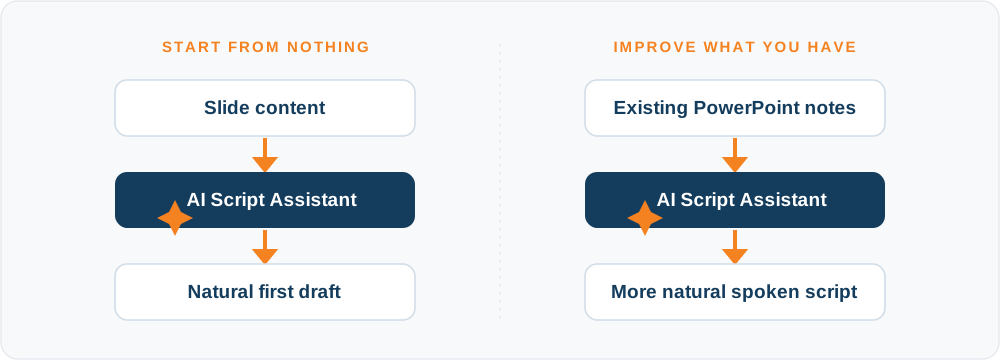
Two ways to use AI Script Assistant
It is the same action either way, and it reads the slide to decide what you need: draft a script where there is none, or sharpen one that already exists.
Turn slide content into something you’d actually say
Slide bullets are facts, not a script. Read them aloud and you sound like you’re reading bullets. Here is the kind of change the AI Script Assistant makes.
Your slide provides the facts. AI Script Assistant helps turn them into something you’d actually say.
AI drafts. You decide.
Every suggestion arrives beside your current notes, never on top of them. Accepted text lands in the same editable speaker-notes script you present from, so you can trim a sentence, fix a name, or rewrite a line by hand. The AI gives you a starting point, not a final answer.
How to use it
The AI Script Assistant is a ScriptAssist Pro feature and it is off by default. Turn it on in Settings → AI Script Assistant with Enable the AI Script Assistant. While you are there, set a default tone (Conversational, Formal, or Energetic) and a default length (Brief, Standard, or Detailed). Those are just starting points; you can change either one per slide. (The assistant writes in English in this version.)
Once it is on, every slide in the main script view gains a ✨ Improve with AI action. That single action is the whole feature.
Starting from a blank page. Land on a slide whose speaker notes are empty, click ✨ Improve with AI, and ScriptAssist drafts a spoken script from what the slide already tells it: the title and the on-slide text. If the first draft isn’t quite right, Regenerate with a different tone or length until it is close, then Accept to drop it into your notes and edit from there. Going from a draft to your own voice is far faster than going from nothing to a draft.
Improving an existing script. On a slide that already has notes, the same ✨ Improve with AI action rewrites what is there. It tightens long sentences, swaps written phrasing for spoken phrasing, and paces the lines for the ear. Your original stays put on screen next to the suggestion, so you are always comparing the two. Prefer a punchier version? Regenerate as Energetic. Too long? Regenerate as Brief. Nothing touches your notes until you say so.
Using AI with confidential presentations
Because this runs in the cloud rather than on your machine, it is worth knowing exactly how your content is handled. What it sends, and what it doesn’t:
- Only when you click. Nothing is sent in the background. The slide’s title, on-slide text, and current notes go out only the moment you click Improve, over an encrypted connection.
- Used only for your script. Generation runs server-side on Microsoft Azure OpenAI under Microsoft’s enterprise terms. Your content is not used to train AI models or build ad profiles.
- No keys on your computer. The secure connection is handled by the ScriptAssist service, not stored locally.
For teams working with regulated or confidential material, these controls can be important when evaluating whether an AI tool meets organizational requirements.
Frequently asked questions
Can AI write a script from my PowerPoint slides? Yes. On a slide with empty speaker notes, click ✨ Improve with AI and ScriptAssist drafts a spoken-style script from the slide’s title and on-slide text. You then edit it into your own voice.
Can AI improve an existing PowerPoint script? Yes. On a slide that already has notes, the same ✨ Improve with AI action rewrites them into something more natural to say, using your existing notes as the starting point. Your original stays on screen beside the suggestion so you can compare before anything changes.
Does ScriptAssist automatically change my PowerPoint speaker notes? No. Every suggestion arrives beside your current notes with three choices, Accept, Reject, or Regenerate, and nothing changes until you Accept. Accepted text lands in your editable speaker notes for you to refine.
Is my presentation content used to train AI models? No. Generation runs server-side on Microsoft Azure OpenAI under Microsoft’s enterprise terms, and your content is used only to produce your script, not to train AI models or build ad profiles. It is sent only when you click, over an encrypted connection.
From slide, to script, to delivery
The AI Script Assistant solves the two slowest moments in scripting: the blank page and the draft that sounds like reading. But finding the words is only half the job. ScriptAssist keeps those words with your PowerPoint and puts them where you need them when it is time to present, beside your camera and hidden from your screen share, scrolling hands-free as you speak with VoiceSync.
From slide, to script, to delivery. AI Script Assistant helps you find the words. ScriptAssist keeps those words with your PowerPoint and puts them where you need them when it’s time to present.
Write your script. Keep it in PowerPoint. Put it where you need it when you present.
ScriptAssist drafts a spoken-word script from your slide content, keeps it in your deck, and puts it beside your camera when you present.
Want the technique behind the tool? Read how to write a presentation script that doesn’t sound like reading, or see how to use PowerPoint as a teleprompter.