
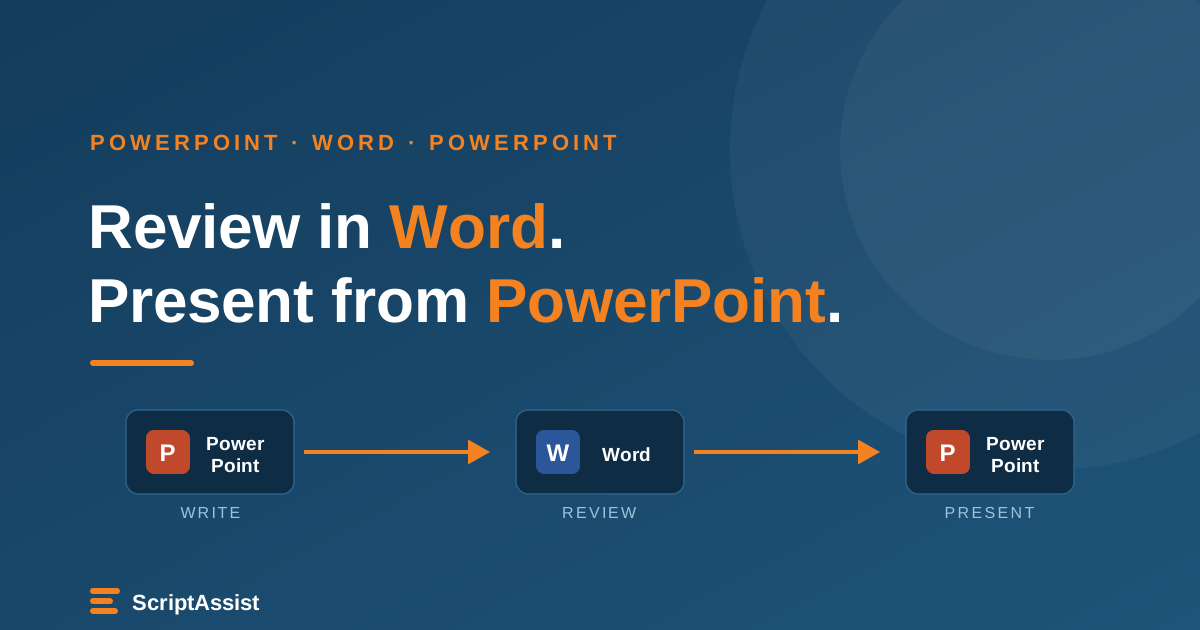
Everyone who reviews your script already knows Word. Almost nobody wants to learn your presentation tool to fix one sentence on slide 34.
That mismatch is why script review usually turns into copy-paste. You send the deck and your reviewer edits speaker notes in PowerPoint, breaking the formatting. Or you paste the notes into a document, they mark it up, and you spend an evening moving eleven revised paragraphs back into eleven slides and hoping you caught them all.
Part of our complete guide to PowerPoint speaker notes.
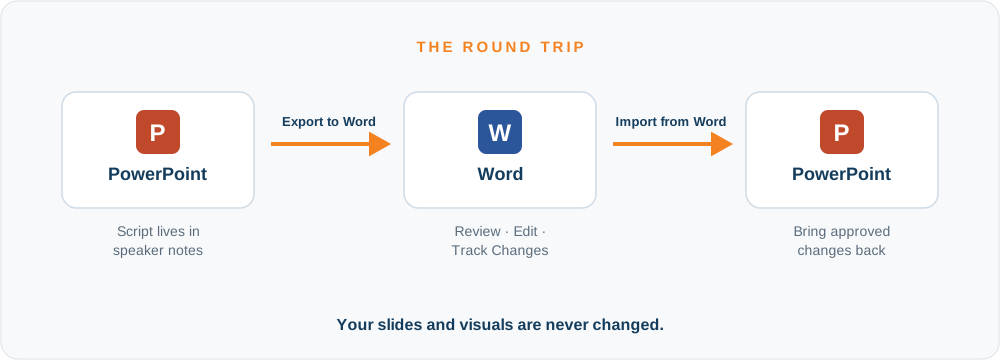
ScriptAssist gives presentation teams a simple round-trip workflow: export your PowerPoint speaker notes to a professionally formatted Word document, review and revise them using the tools your team already knows, then bring the changes back into the correct slides automatically.
No copying and pasting. No separate master script to maintain. No wondering whether the version in Word still matches the version in PowerPoint.
Why presentation teams need a Word round trip
Script review is a team sport. The person at the front of the room is rarely the only person with an opinion about the words, and the people with opinions rarely live in your presentation software. A round trip through Word keeps everyone in the tool they already trust.
- Reviewers work in Word. No new software for reviewers to learn.
- PowerPoint remains the source of truth. The script stays with the slide it belongs to.
- Bring back only what changed. Unchanged scripts remain untouched.
- Conflicts are identified before anything is overwritten.
It fits the way real teams actually work: a presenter and an editor polishing delivery, an executive and a communications team signing off on messaging, a subject-matter expert and a writer getting the facts exactly right. Anywhere one person owns the deck and other people need to weigh in, the round trip keeps a single script moving cleanly between them.
Send a document people will actually mark up
Your reviewers never open ScriptAssist, and they do not even need PowerPoint. They receive a normal Word document and mark it up the way they always have.
File → Export to Word (Ctrl+X) writes your script to a branded .docx and opens it. Spend thirty
seconds in Settings → Export to Word first, because the layout you pick changes how carefully people read.
- Table format puts the slide number beside the script. Compact, fast to scroll, right for a reviewer who knows the deck and is working on wording.
- Thumbnails puts a picture of each slide above or below its script. Slower, but necessary when the reviewer hasn’t seen the deck or when the words only make sense next to the visual. Set the image width and whether it sits left, center, or right.
- Page break between slides gives every slide its own page. Reviewers who print, or who write in margins, will thank you.
Close PowerPoint first if you want thumbnails. ScriptAssist uses PowerPoint to render the slide images and will ask you to close it before it can.
Keep your team’s Word review workflow
The biggest reason this works: nobody has to change how they review. Track Changes, margin comments, the Reviewing pane, your reviewers keep every habit they already have. You are not asking them to adopt a tool, you are handing them the tool they open every day.
Tell your reviewer to turn on Track Changes before they start. Not because ScriptAssist needs it, but because you do: tracked edits show you what moved and let you argue with a specific sentence instead of re-reading the whole script.
Here is the part people don’t expect. You don’t have to accept the changes before importing. ScriptAssist reads the final wording either way, so a document that comes back full of pending markup imports exactly as cleanly as one that has been tidied up. Leave the tracking on and let ScriptAssist show you the differences on its own terms.
Bring back only what changed
First, what “changed” means here: ScriptAssist only ever reads and writes your speaker notes. Your slides themselves, their layout, and their visuals are never touched. So a “changed slide” is shorthand for a slide whose script came back different, nothing more.
File → Import from Word (Ctrl+I) matches the document to your deck by slide number, works out which
slides have a changed script, and updates only those. It does not replace your whole script indiscriminately.
Four script edits in a sixty-slide deck means four scripts updated, and every other slide is left exactly
as it was. No accept-all-then-paste, no stray formatting change rippling through the rest of the deck.
Changed is orange. Conflict is red.
Two different things can happen to a slide while your script is out, and ScriptAssist colors them differently in the slide navigator so you can tell them apart at a glance.
Conflicts are the reason to watch for red. On one, you choose Take the Word version or Keep mine, slide by slide. Nothing is decided for you.
You can review either in a pop-up import dialog that steps through each changed script one at a time, or in the main script view, which flags changes inline with a banner offering Accept all changes, Review per slide, or Dismiss. Set your preference on the Settings → Word Import tab. Either way, view the differences as a side-by-side diff or as inline Word markup, with insertions highlighted and deletions struck through.
Already using the Word round trip? 5 tips for smoother reviews
Once the basics feel natural, these keep bigger reviews clean.
- Don’t add or delete slides while the script is out. Matching is by slide number. If slide 12 becomes slide 13 mid-review, the import lands in the wrong place. Freeze the structure, or re-export after you restructure.
- One reviewer at a time. ScriptAssist compares one document to your deck. Two people editing in parallel means two files, two imports, and whoever goes second generates conflicts.
- Export late. The document is a snapshot. The longer it sits with a reviewer while you keep working, the more slide scripts you will have changed in PowerPoint yourself, and every one of those is a conflict waiting to happen.
- One paragraph? Skip the round trip. Click a slide’s Edit button to open just that slide’s script in Word, edit, save, close. ScriptAssist applies it and returns you to the same slide. The full export is for review cycles, not typos.
- Keep the structure stable. Reorganizing mid-review is the one thing that reliably confuses the match, so save restructuring for before the export or after the import.
Ctrl+Shift+B to drop a [B] marker where the script should break to a new page.
It is stored in the speaker notes, so it travels with the deck and every presentation style honors it.
Frequently asked questions
Can I export PowerPoint speaker notes to Word?
Yes. ScriptAssist reads the speaker notes from every slide in your .pptx and writes them to a formatted
Word document with one command (File → Export to Word). You choose a table layout, slide thumbnails,
and page breaks in Settings before you export.
Can reviewers use Track Changes in Word? Yes. Reviewers work in a normal Word document and can use Track Changes, comments, and the Reviewing pane exactly as they always do. They do not need ScriptAssist or PowerPoint. ScriptAssist reads the final wording whether or not the tracked changes have been accepted, so a marked-up document imports as cleanly as a tidied one.
Will importing the Word document change my PowerPoint slides? No. ScriptAssist only reads and writes speaker notes. Your slides, their layouts, and their visuals are never touched. Importing updates the script on the slides whose wording changed and leaves every other slide alone.
What happens if the PowerPoint script changes while the Word document is being reviewed? ScriptAssist detects it as a conflict. If you changed a slide’s script in PowerPoint after exporting, that slide is flagged in red and nothing is overwritten until you decide, slide by slide, whether to keep your version or take the Word version.
One script. Two applications. No copy-and-paste.
Write and present from PowerPoint. Send the script to Word when other people need to review it. Bring their changes back when they’re done. Your speaker notes stay the single source of truth, and nobody has to reconcile two versions by hand.
Send your speaker notes to Word and bring the edits back
ScriptAssist exports your PowerPoint speaker notes to Word, brings only the changed text back into the right slides, and flags conflicts in color.
Once the review is settled, read your script beside your camera while staying hidden from your screen share, or see how On-Camera Script keeps your eyeline on the lens. New to writing the script itself? Start with how to write a presentation script.