
By the end of this guide, you’ll know how to look and sound more confident on Zoom, Teams, or Webex, deliver at the right pace while maintaining eye contact, and use a full script without putting it on the shared screen. You’ll also know how to keep a remote audience engaged from your opening line through the last question. Most of it comes down to a handful of practical habits, some rehearsal, and a little preparation before the call.
Why virtual presentations are harder than they look
Virtual presentations create a different set of challenges than presenting in the room. You have to hold attention without being able to fully read the audience, maintain eye contact while referring to notes, manage slides and technology without distraction, and recover quickly when something goes wrong. Those challenges become even more important when the presentation is a client review, board update, regulatory meeting, investor presentation, webinar, or other high-stakes event.
Presenting on video removes many of the cues a presenter normally relies on. You can’t read the room, because the room is a grid of tiles, half of them cameras-off. Your audience is one tab away from their inbox. And the medium adds a set of traps that don’t exist in a conference room: a camera that looks up your nose, a microphone that makes you sound like you’re in a tunnel, a screen share that accidentally shows your speaker notes.
The good news is that virtual presenting is very learnable, because most of it is setup and habit rather than talent. This guide covers twelve practices, roughly in the order you’d use them, from the hour before the call to the moment something goes wrong.
On video, confidence starts before the call.
Read your script without looking away from the camera
ScriptAssist puts your PowerPoint script on a teleprompter right under your webcam, hidden from screen sharing and recording.
1. Frame your camera at eye level
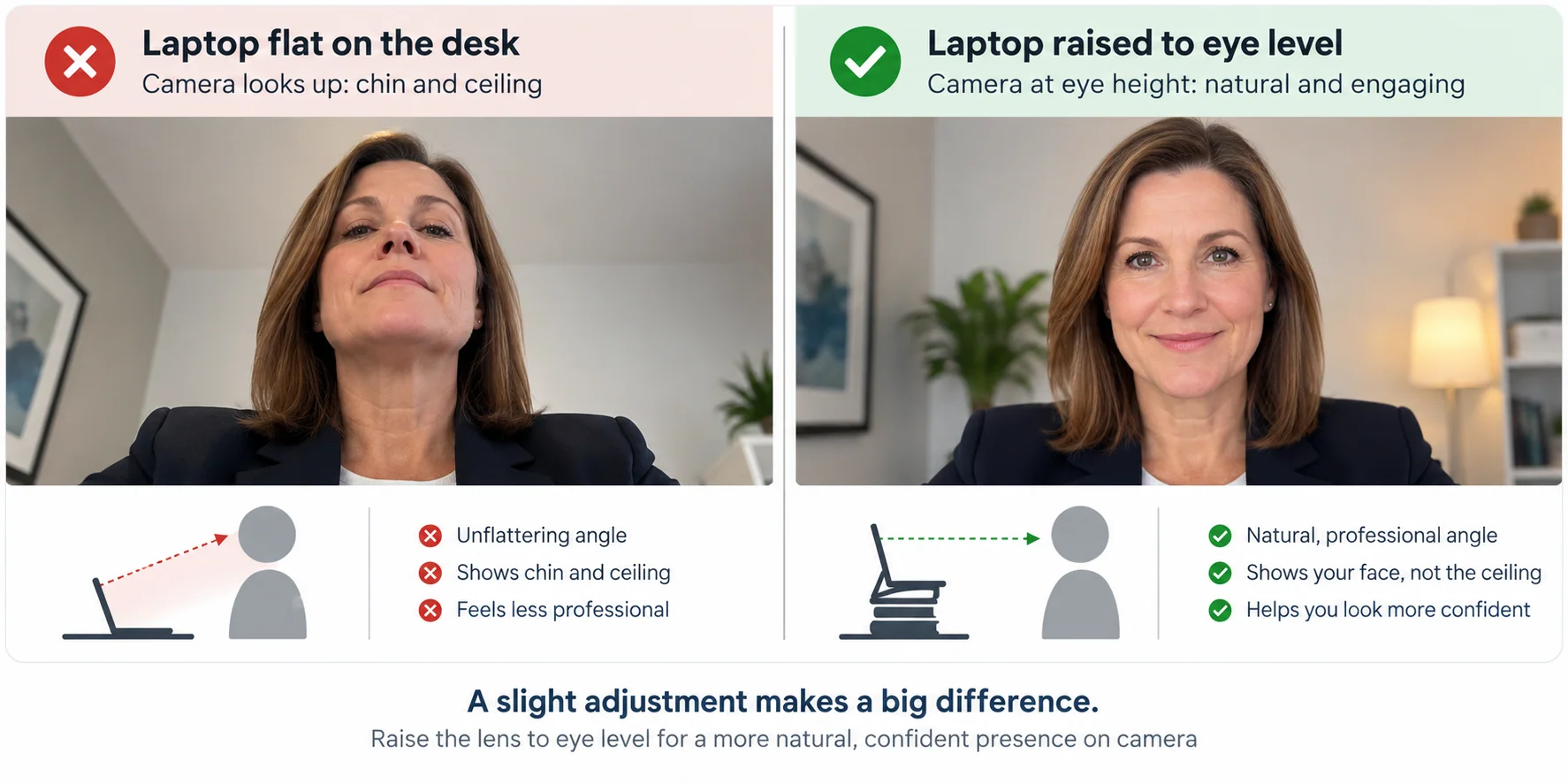
The camera’s position decides how you come across before you’ve said a word. A laptop flat on the desk points its lens upward, which makes you loom over the audience and shows them the ceiling. A monitor camera far above your eyes makes you look small and down-turned.
Raise the lens until it’s level with your eyes. Books under the laptop work. A cheap laptop stand works better. If you use an external webcam, clip it to the top of the monitor you’ll actually be looking at, not the one off to the side.
Then frame the shot: your eyes about a third of the way down from the top of the picture, a little headroom, shoulders visible. Sit back far enough that you’re not filling the frame, but close enough that people can read your expression. Good framing keeps attention on you and makes the conversation feel more natural.
2. Fix your lighting and audio first
You want light on your face, not behind you. Face a window, or put a lamp behind your camera and slightly above it. A bright window behind you turns you into a silhouette, and no amount of virtual-background trickery fixes that.
If you have to prioritize, start with audio. Viewers can usually tolerate less-than-perfect video, but distorted, distant, or inconsistent sound makes a presentation difficult to follow. A headset mic, lapel mic, or dedicated USB microphone will often outperform a laptop’s built-in microphone simply because it can be positioned closer to your mouth and farther from the keyboard and fan. Whatever microphone you use, present somewhere quiet and test it with a real recording, not just the meter in the settings dialog.
If you can only fix one thing before an important call, fix the sound.
3. Prepare everything before you share
Every file, window, link, demo, and script you expect to use should be open, tested, sized, and positioned before you click Share. Fumbling between windows on camera looks unprepared even when you aren’t, and it’s the moment stray content ends up on the shared screen.
Then do the test that catches nearly everything: join the meeting from a second device and look at your own share. A phone or tablet is fine. What you see there is what your audience sees. If your speaker notes, your chat window, or a notification tray are visible, you’ll catch it before going live.
If your desktop will appear at any point during the presentation or a demo, make sure it’s clean and organized. Remove or hide desktop files and icons you don’t need, close unrelated applications, and use a neutral background. The goal is simple: nothing on screen should compete for attention or reveal information you didn’t intend to share.
4. Silence every notification
Do Not Disturb on the operating system. Do Not Disturb on the phone, face down, off the desk. Close email and chat entirely rather than minimizing them, because a minimized app can still pop a banner across the shared screen.
A notification appearing during a screen share is distracting. More importantly, it can expose confidential information to everyone in the meeting and potentially preserve it in the recording. Before an important presentation, turn on Do Not Disturb or the equivalent focus mode on both your computer and phone, and verify that notifications won’t appear while you’re sharing.
5. Open with the stakes, not the agenda
Remote audiences have plenty of competing distractions, so don’t spend your opening minutes reading an agenda they can already see. Give them a reason to pay attention. Start with what is at stake, what has changed, what decision needs to be made, or why the subject matters to them.
Compare “Today I’ll walk through the Q3 results, the pipeline update, and next steps” with “Three of our five biggest accounts are up for renewal in the next ninety days, and what we decide in the next thirty minutes will impact all three.” The second gives the audience a reason to listen. The agenda slide can come after, if it needs to come at all.
Consider writing your opening word for word, even if the rest of the presentation is looser. Knowing exactly how you want to begin removes one decision at the moment nerves are often highest and helps you get into the flow of the presentation.
6. Find your pace and leave room for pauses
Nerves often make presenters speed up. Virtual delivery also benefits from a little more space between ideas, especially when the material is complex. Don’t aim for an artificially slow voice. Aim for a deliberate pace that gives listeners time to follow the message and gives important points room to land.
Use pauses liberally. Pause before an important point, and pause again after it, so the point has room to land. Pause for a few seconds before you advance a slide. Pause when you need a moment to collect your thoughts; what feels like a long silence to you is usually just a natural beat to your audience. And don’t leave any of this to memory: put a note in your script wherever you want a two or three count pause, so you stop, breathe, and only then continue.
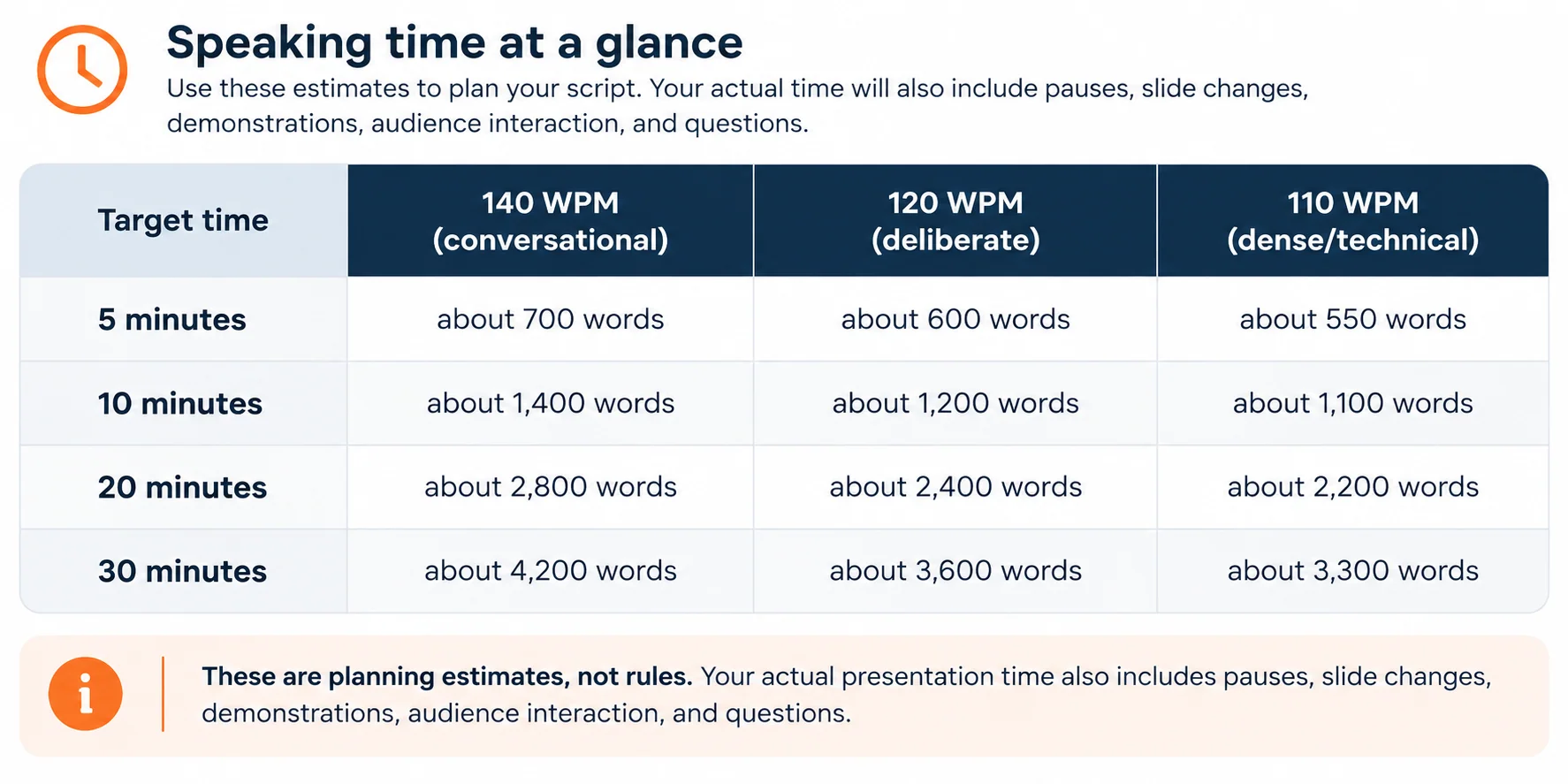
Here’s how common speaking rates translate into script length:
If you’re not sure where you sit, our speaking rate guide walks through it, and how many words fit in a 10-minute presentation works one common slot in detail.
Two tools make this concrete. The free Script Time Calculator estimates how long a pasted script will run at a chosen pace and how many words to cut. ScriptAssist’s Presentation Timing goes further: it estimates speaking time per slide and for the whole deck, then calibrates those estimates to your own measured pace from a rehearsal, so the plan reflects how you actually talk, not a textbook average.
7. Hold eye contact with the lens
On video, eye contact means looking at the camera, not at the faces on screen. It feels unnatural, because the lens gives nothing back. But to your audience, a presenter looking into the lens is looking at them, and a presenter looking at the gallery view is looking slightly past them at something else.
You don’t have to stare down the lens for thirty minutes. Look into it for the opening, for every key point, and for every question you ask. Glance at the gallery to read reactions, then come back. A small sticky-note arrow next to the lens helps more than you’d expect.
The real problem is what happens when you need your notes. Where your notes sit determines where your eyes go, and your audience sees every trip:
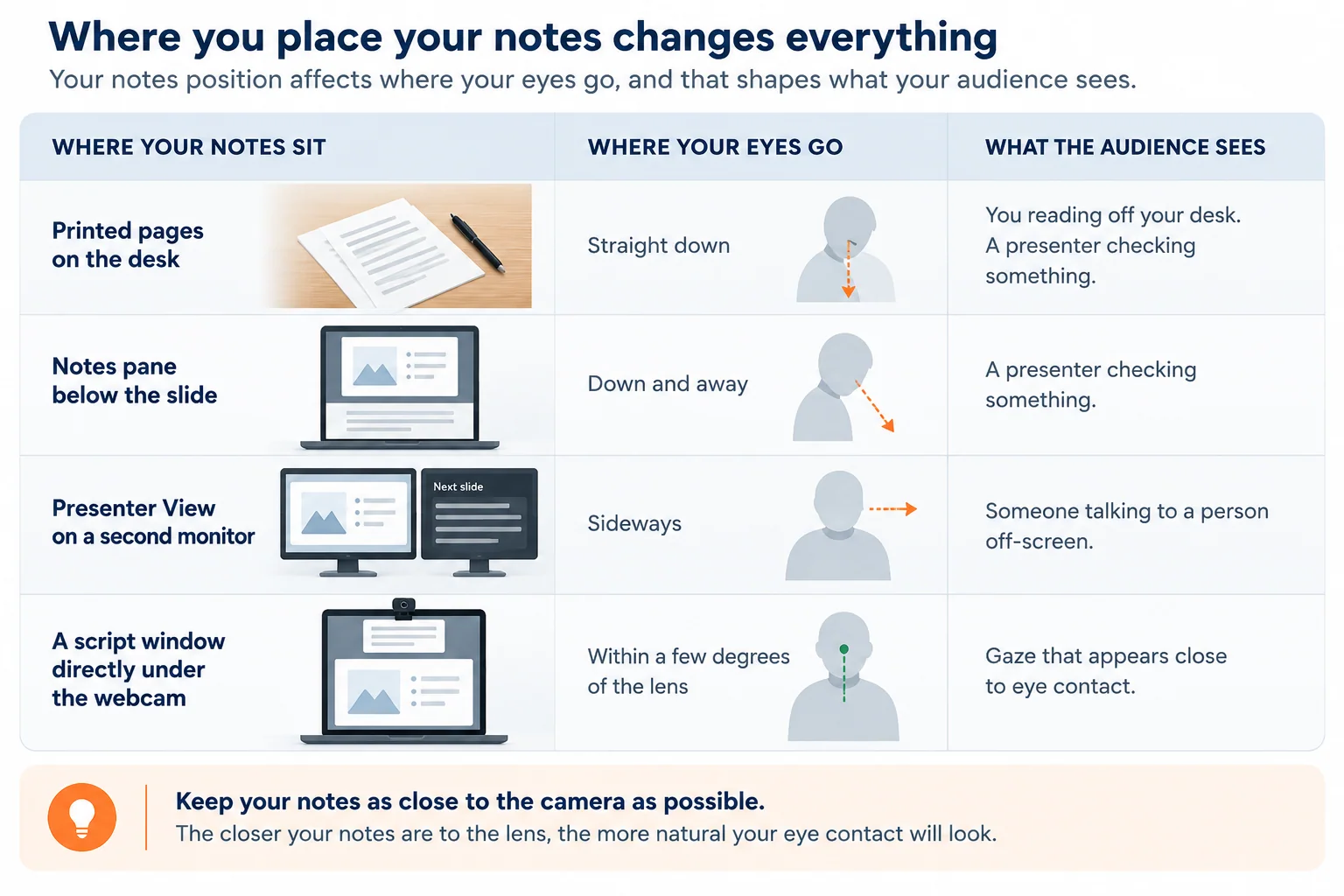
That last row is the one to aim for, and practice 10 and the section on using a PowerPoint teleprompter explain how to get there. For the technique side, see how to maintain eye contact while presenting on camera.
8. Give every slide a clear job
Slides support you; they aren’t your script. On a shared screen, slides are also bigger than they’d be in a room, filling the audience’s whole display while you shrink to a thumbnail. A wall of bullets will be read, silently, faster than you can say it, and then the audience is waiting for you to catch up.
Keep each slide focused on one clear communication objective. That may mean a simple visual and a few words, but complex presentations sometimes require detailed charts, tables, or scientific data. In those cases, use hierarchy, emphasis, and progressive explanation to make it immediately clear where the audience should look and what they should take away. The goal isn’t to make every slide sparse. It’s to keep the audience from having to decide for themselves what matters. Our PowerPoint speaker notes guide covers how to split the message between the slide and the notes.
A useful test: can you state the point of the slide in one sentence without reading it? If not, the message may not yet be clear enough. Your slide should support what you’re saying, not force you to read the screen to remember what matters. And if the slides themselves are the real bottleneck, that’s a design problem worth solving on its own; SlideSource helps teams turn rough decks into clean, on-brand ones.
9. Use a script, but write it for the ear
A full script can be especially valuable in a high-stakes setting: it can help keep you on message, on time, and consistent with wording that legal, regulatory, or leadership has reviewed. The case against it is usually a memory of the last time someone read a script aloud and sounded like they were reading a terms-of-service agreement.
The problem isn’t that they scripted. It’s that they wrote prose meant to be read silently, and then read it aloud. Spoken language is different: shorter, plainer, and more direct.
- Short sentences. One idea each. If you run out of breath reading it, cut it in two.
- Contractions. “We’re,” “it’s,” “you’ll.” Contractions often sound more natural when spoken than their formal equivalents.
- Talk to one person. Write “you,” not “everyone.”
- Write the bridges. A line like “so what did we do about it?” carries you into the next slide instead of stopping dead at every slide boundary.
- Mark it up. A [pause] after a key number is a delivery instruction to your future self.
Keep the working script in the PowerPoint speaker notes, attached to the slide it supports, so the script stays connected to the deck rather than living in a separate document that has to be manually maintained.
The full craft is in how to write a presentation script that doesn’t sound like reading.
A script doesn't make you sound scripted. Writing it for the page does.
10. Keep your script near the camera
Here’s the tension every virtual presenter feels. You want to stay on script. But glancing at notes breaks eye contact, and putting the notes anywhere on the screen you’re sharing risks showing them to everyone.
PowerPoint Presenter View works well when you can dedicate one display to your notes and another to the presentation. In a virtual presentation, however, your notes may end up below your eyeline or off to the side while your webcam sits somewhere else entirely. So you can read, or you can look at your audience, and doing both naturally is very hard.
The fix has two parts, and both are important. Put the script right at the lens, in a wide, shallow window centered directly under the webcam, so reading it keeps your gaze within a few degrees of the camera. And keep that window hidden from the screen share, so you can share your full desktop without your notes appearing in the share. Neither half works without the other: a script at the lens that appears in the share isn’t private, and a hidden script off to the side still pulls your eyes away.
The next section shows how a PowerPoint teleprompter does both.
On camera, eye contact isn't a talent. It's a question of where you put your script.
11. Build in interaction
A remote audience can drift the moment a presentation becomes a monologue. When face-to-face, a drifting listener is still in the room. On a call, they’re answering email with your voice as background noise. One of the best ways to bring attention back is to give the audience a reason to participate rather than asking them to listen passively from beginning to end.
- Ask and actually pause. Pose a real question, then wait. Silence on a call feels far longer to you than it does to them. Count to five before you fill it.
- Use names naturally. When the setting is appropriate, inviting a specific person into the conversation can make the discussion feel more personal: “Priya, does that match what you’re seeing?” Use this selectively, especially when participants aren’t expecting to be called on.
- Watch the chat, or assign someone to. On a big call, a co-host who triages questions lets you stay on the thread without ignoring the room.
- Use the tools, sparingly. A one-question poll, a reaction, a “drop your answer in the chat.” Use interaction often enough to reset attention, but not so often that it interrupts the flow of the presentation. The right frequency depends on the audience, format, length, and purpose of the meeting.
- Script the interaction. Write the question, and the pause, into your speaker notes. Interaction that isn’t in the script tends to get skipped when the clock is tight.
For the Zoom-specific version, including sharing, chat, and co-host mechanics, see the complete guide to presenting on Zoom.
12. Have a recovery plan
Wi-Fi drops. Screen shares freeze. A microphone stops working. Unexpected interruptions happen. You can’t prevent every problem, but you can decide in advance how you’ll respond when one occurs.
Decide the recovery before the call:
- A phone hotspot already set up and tested, so a home-network problem doesn’t have to end the meeting.
- A teammate who can take over, with the deck and the script, if you vanish mid-sentence.
- A PDF of the deck you can email or drop in the chat if sharing won’t come back.
- A written “we’re back” line for after any interruption. “Sorry about that, we lost the connection for a moment. We were on the pipeline numbers, and the point is this.” Then carry on.
A calm, prepared recovery helps keep the audience focused on your message rather than the interruption.
A technical problem may be unavoidable. How you recover from it isn't.
Your pre-call checklist
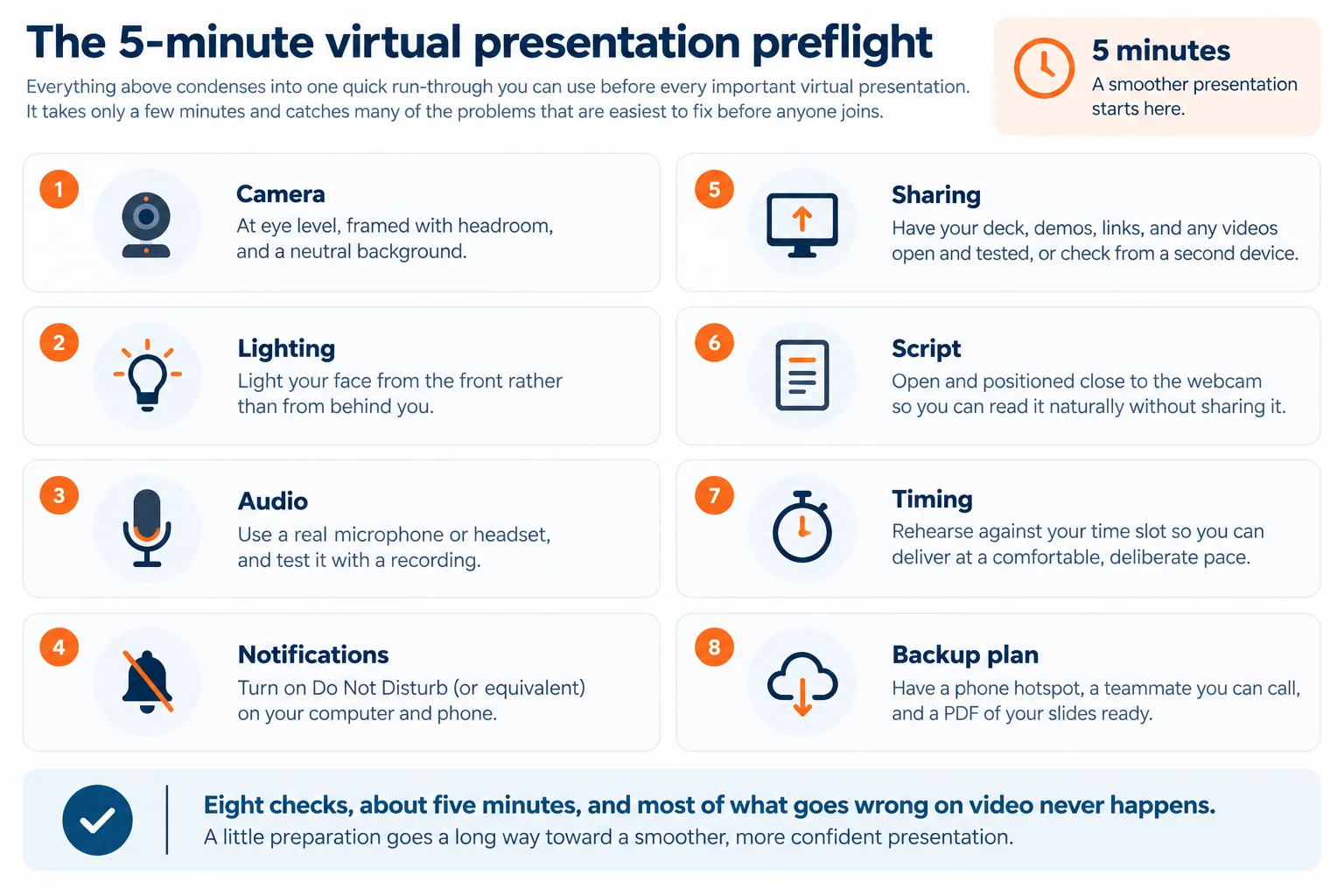
For a full downloadable checklist, see the complete virtual presentation checklist.
Using a PowerPoint teleprompter for virtual presentations
Practice 10 set out the principle: put the script near the lens and keep it out of the share. Here’s how ScriptAssist applies that principle using the speaker notes already in your PowerPoint deck.
Put the script at the lens. ScriptAssist’s On-Camera Script turns the speaker notes already in your deck into a wide, shallow, slightly transparent script window centered directly under your webcam. Your slide stays up. Your script sits at the lens. Reading it keeps you looking at your audience instead of away from them.
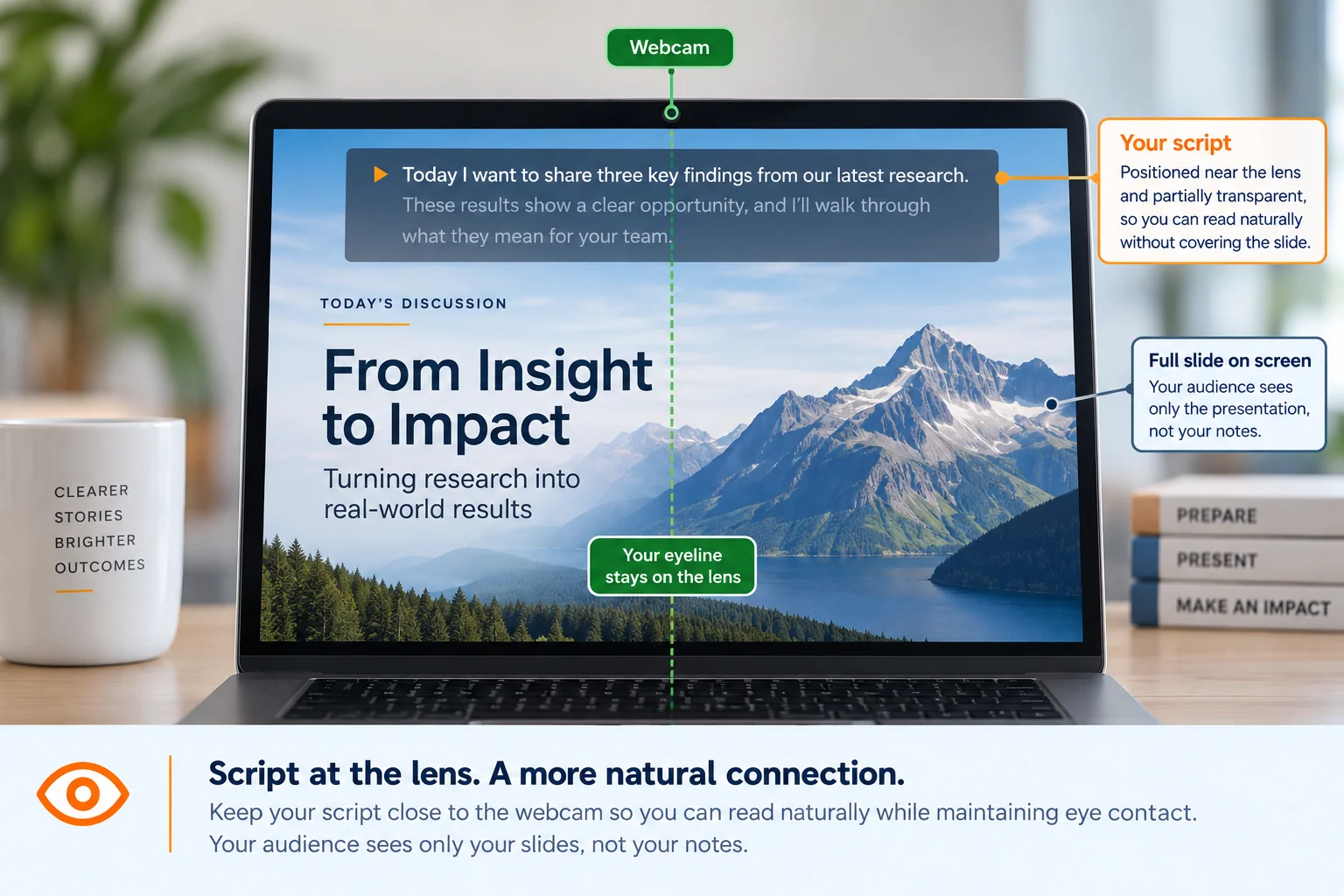
Keep it off the share. On Windows, ScriptAssist’s On-Camera Script is designed to stay hidden from screen sharing and recording in Zoom, Microsoft Teams, and Webex, even when you share your entire desktop. Before an important presentation, always verify the setup using the meeting platform and recording configuration you plan to use. No display juggling, no “can everyone see my notes?” moment, and no need to give up the simplicity of full-screen sharing to keep your script private.
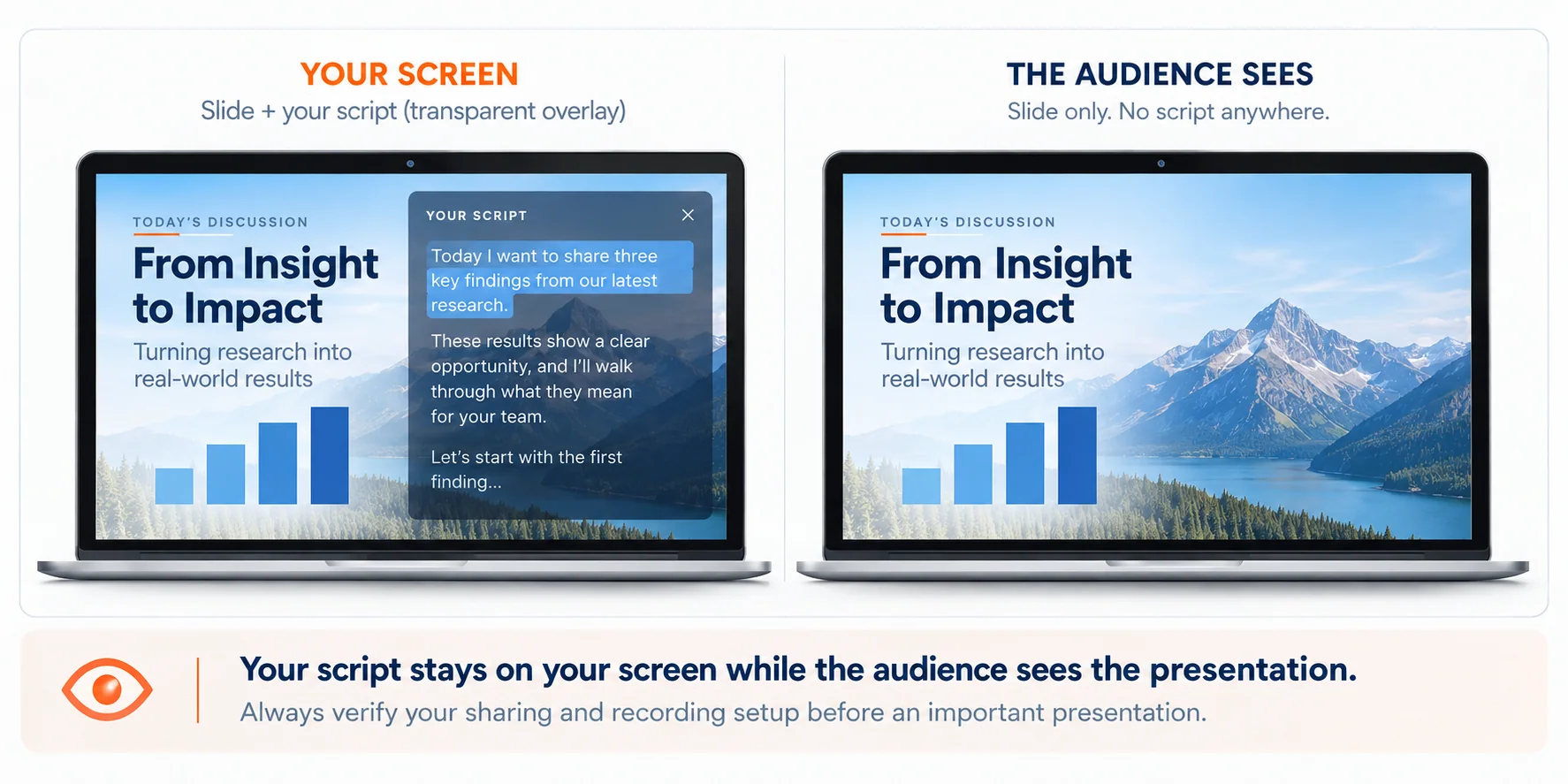
Keep the script moving without touching anything.
VoiceSync follows your delivery and advances the script as you speak. If you pause, it pauses. If your pace changes, it follows you. Voice processing happens locally on your computer, so your audio is not sent to the cloud.
One more detail makes this practical for a real presentation. Because ScriptAssist reads the speaker notes straight from your existing PowerPoint file, there’s no conversion, no separate script file, and your slides are never changed.
If you’re weighing this against what PowerPoint already gives you, we’ve written the full comparison in PowerPoint Presenter View vs. ScriptAssist and, more broadly, Presenter View vs. a PowerPoint teleprompter. For the platform specifics, see reading a script on Zoom and a PowerPoint teleprompter hidden from screen sharing.
Using AI to prepare your presentation script
Practice 9 asked you to write a spoken-style script and keep it in the speaker notes. For a lot of presenters the hard part is the blank notes box, and that’s where ScriptAssist’s AI help fits in: optional, assistive, and switched on only if you want it.
If the blank notes box is slowing you down, ScriptAssist Pro can use the content of the slide to draft a starting script or help rewrite existing notes in a more natural spoken style. Review and edit the result just as you would any first draft. Nothing changes in your PowerPoint notes until you accept it, and the final script remains yours to review, approve, and deliver. As with any AI-generated content, review the draft for accuracy, context, and language appropriate to your audience before using it.
When other people need to review the script, don’t create a second version that has to be manually reconciled with PowerPoint. ScriptAssist can export the script to Word for review and Track Changes, then bring the edited wording back into the corresponding PowerPoint speaker notes slide by slide. That keeps the deck and the reviewed script aligned.
Frequently asked questions
How do I look at the camera and read my notes at the same time? Put the notes as close to the lens as you physically can. Notes below the slide pull your eyes down; notes on a second monitor pull them sideways. A script window centered directly under the webcam keeps your gaze within a few degrees of the lens, which reads as something close to eye contact on video. ScriptAssist’s On-Camera Script is built for exactly that placement.
How do I present PowerPoint on Zoom without showing my speaker notes? Either share a single window (the slide show) rather than your whole screen, or use a PowerPoint teleprompter whose script window is hidden from screen capture. On Windows, ScriptAssist’s On-Camera Script is designed to stay hidden from screen sharing and recording in Zoom, Teams, and Webex, even when you share your full desktop. Always join from a second device first and check what the audience actually sees.
What is a good speaking pace for a virtual presentation? A deliberate pace, usually a little slower than you would speak in the room. About 140 words per minute is a common general estimate; for virtual delivery, planning at 120 words per minute leaves room for pauses, slide changes, and the small delays video adds. Dense technical material can run closer to 110. The surest number is your own measured pace from a rehearsal, which is what Presentation Timing calibrates to.
How long should a virtual presentation script be? Work backward from your slot, then subtract time for questions, demos, and transitions. At a planning pace of 120 words per minute, a 10-minute talk is roughly 1,200 words and a 20-minute talk is roughly 2,400. Treat those as planning estimates. A 20-minute slot with five minutes of Q&A is really a 15-minute, 1,800-word script. Check yours with the free Script Time Calculator.
How do I keep a remote audience engaged? Open with the stakes rather than the agenda, build in meaningful opportunities for participation, use people’s names when appropriate, and make sure your slides support rather than compete with what you’re saying. A remote audience can drift when a presentation becomes a long monologue, so plan interaction where it naturally helps reset attention or move the discussion forward.
Should I use a word-for-word script for virtual presentations? A word-for-word script can be especially useful when wording, timing, consistency, or review requirements matter. Other presenters work better from structured notes or talking points. If you use a full script, write it for the ear: short sentences, contractions, one idea at a time, and natural transitions between slides. Then rehearse until you’re communicating the ideas rather than simply decoding the words.
What is the best camera and lighting setup for video calls? Lens at eye level, light on your face from the front rather than a bright window behind you, and clear audio from a headset, external microphone, or a well-tested built-in microphone. If you have to prioritize, start with audio: distant or distorted sound makes even a well-framed presentation difficult to follow.
Can I use a PowerPoint teleprompter for virtual presentations? Yes. A PowerPoint teleprompter can be particularly useful when you need to follow a detailed script without repeatedly looking down at notes or off to a second monitor. ScriptAssist uses the speaker notes already in your PowerPoint deck and can position the script directly beneath the webcam. On Windows, its On-Camera Script is designed to remain hidden from screen sharing and recording in Zoom, Teams, and Webex. VoiceSync, available with ScriptAssist Pro, can advance the script automatically as you speak. Voice processing happens locally on your computer, so your audio isn’t sent to the cloud.
The best virtual presentations don’t feel like virtual presentations
The technology disappears, the presenter looks and sounds natural, the slides support rather than compete with the message, and the audience can focus on what is being said rather than how it is being delivered.
Getting there doesn’t require a studio or a completely different presentation style. It comes from a handful of deliberate choices:
- Control what the audience sees and hears before the meeting starts.
- Give people a reason to listen before you give them an agenda.
- Write for the ear, rehearse against the clock, and know your own pace.
- Put your script close enough to the camera that using it doesn’t pull you away from your audience.
- Plan for interaction and know how you’ll recover when something goes wrong.
Do those things consistently and the technology moves into the background, which is exactly where it belongs.
Put the practices into practice
Virtual presenting gets easier when the tools you use support the way you actually present. ScriptAssist works with the PowerPoint deck and speaker notes you already have to help you write, rehearse, time, and deliver your presentation.
Keep your script close to the camera. Rehearse against your available time. Use VoiceSync for hands-free delivery. And keep your On-Camera Script private while sharing your screen.
ScriptAssist was developed by SlideSource, drawing on decades of experience helping presenters prepare for high-stakes presentations.
Try it with your own PowerPoint deck. Standard and Pro plans include a 7-day free trial.
Read your script without looking away from the camera
ScriptAssist puts your PowerPoint script on a teleprompter right under your webcam, hidden from screen sharing and recording.